© 2021 Bryan C. Roessler
Last updated: 2021-10-22
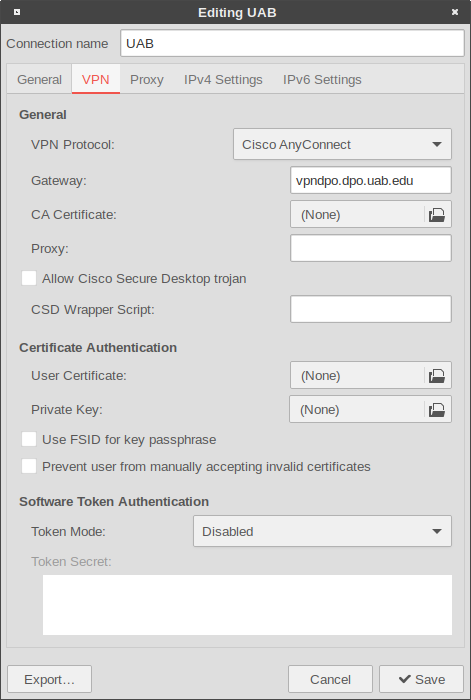
If UAB restricts direct ssh access to the Hartman Lab Server, users will need to first connect to the UAB VPN using the UAB AnyConnect VPN. Once the VPN connection is established, follow the rest of the manual to connect to the server.
For users that do not have UAB VPN credentials, a whitelist exception for the user's IP address will need to be added to the UAB firewall. Requests to UAB IT can be made here using your UAB credentials, and should resemble the following:
Type: Permit
Application Name: ssh
Firewall: UAB Internet Border
Source IP Addresses: User address(es)
Destination IP address: 138.26.17.151
TCP Port: 22
UDP Port: N/A
Other Protocols: N/A
Reason: Outside collaboration/(Other reason)
ssh username@hartmanlab.genetics.uab.eduusernamessh blazerid@hartmanlab.genetics.uab.edu using the new passwordsmbpasswdFiles can be transferred to/from the server using sftp.
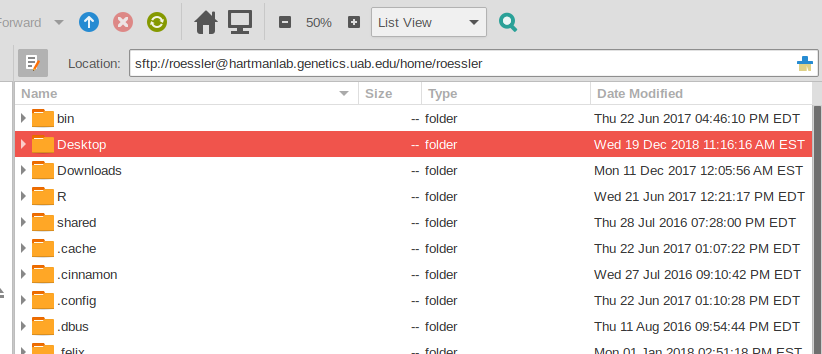
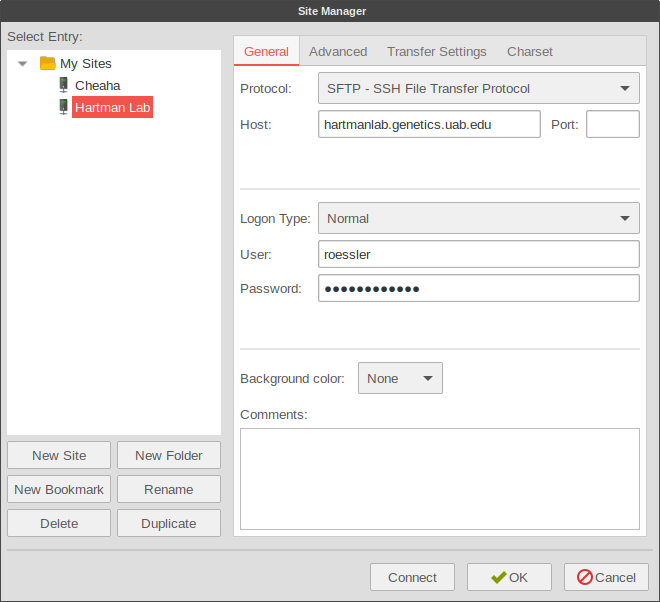
Users can access the server directly through a terminal (text-based) ssh client (ssh in OSX/Linux, or PuTTY in Windows) or via a GUI SFTP program such as Filezilla or WinSCP. Linux users can access and mount the SFTP share directly within most file managers or by using sshfs.
Using caja to access sftp shares:
Using Filezilla to access sftp shares:
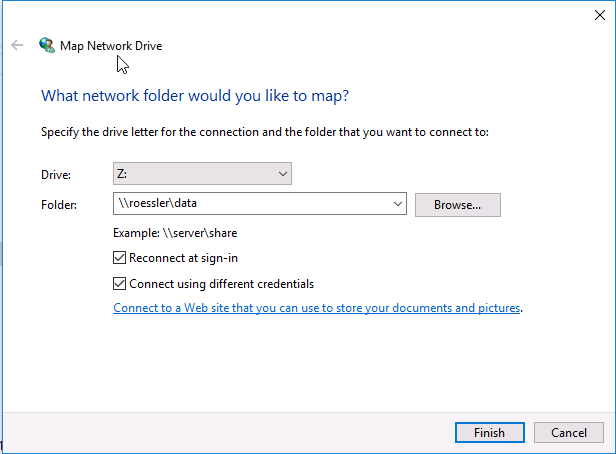
Samba file shares can be mounted cross-platform as if the data existed locally. The server provides two shares:
/mnt/data): \\username\data$HOME): \\username\usernameThe default Samba credentials are the same as your server username and password. Users can change their Samba password using smbpasswd.
X2Go provides a remote virtual desktop over vnc secured with ssh. X2Go clients are provided for Windows, OSX, and Linux systems on the X2Go website or from your package manager (x2goclient).
X2Go sessions can be paused or closed from the X2Go client window. Multiple sessions can be saved in the client, making it easy to select alternate quality settings based on location/bandwidth or to provide multiple user login sessions on the same machine.
Note: Some programs do not continue to run at full speed when an X2Go session is paused. In these cases, the program should be run via remote SSH (ideally in a tmux or screen session).
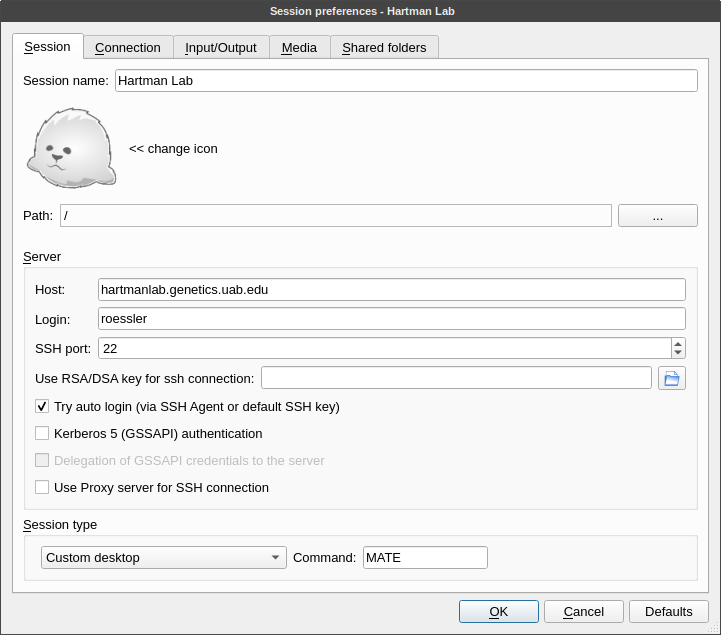
Session name: Hartman Lab Server
Login: username
SSH port: 22
Session type: MATE (Not all session types are allowed and MATE should provide the best experience with X2Go)
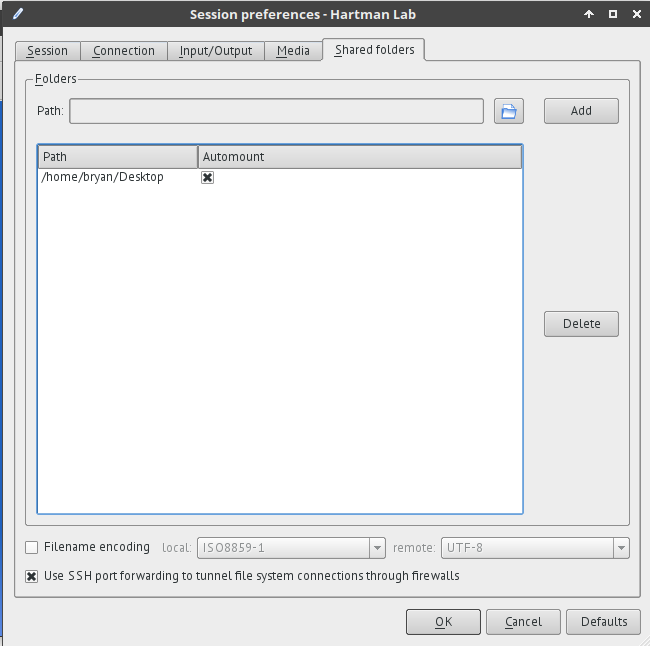
Disable sound support. This will prevent pulseaudio from spamming the server logs.
/media/disk/<share_name>.
It is possible to launch graphical server programs directly on a client.
ssh -X username@hartmanlab.genetics.uab.edumatlab (to launch Matlab GUI on the client)Access from within X2Go: Applications>Internet>Remote Viewer: spice://localhost:5900
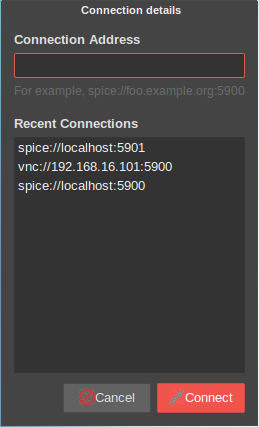
Direct external access:
virt-viewer is available across all platforms (Windows, OSX).
The SPICE password is: hartmanlab
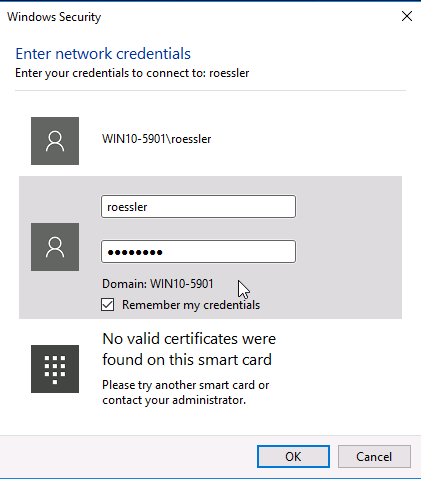
The virtualized Windows 10 instances require logging in with your UAB email address and password.
Once you are finished using the Windows virtual machine, remember to log out of your UAB Windows account so that other users do not have access to your session. Windows will perform an automatic logoff after 30 minutes of inactivity for security.
vnc://192.168.16.101:5900The robot webcam is viewable in a web page within an X2Go session at: localhost:8888
Newer versions of RStudio do not support IDE access via X2Go. The IDE can be accessed via web browser at http://localhost:8787 in an X2Go session or via an SSH tunnel, ex. ssh -f username@hartmanlab.genetics.uab.edu -L 8787:localhost:8787 -N
The rsync, rsnapshot, and syncthing tools are installed on the server to facilitate user backups.
rsync is recommended for users that would just like to periodically backup their $HOME directory to a local machine over ssh:
rsync -azH --delete username@hartmanlab.genetics.uab.edu:~/* ~/backup/
A GUI alternative, syncthing (Applications>Internet>Syncthing) syncs folders and files between machines automatically and is accessible at http://localhost:8384
Public-private key authentication is more secure than passwords and can be configured for passwordless login.
ssh-keygen (Linux & OSX) or PuTTYgen (Windows). The user can then transfer the public key to the server using ssh-copy-id.Most popular SFTP programs support using public-private keys for passwordless authentication. Windows/OSX users may need to add their key pair to PuTTy/Filezilla/WinSCP manually.
Once configured, the user will no longer need to enter their password to access the SFTP or X2Go server, which simplifies login and enhances security.
scripts- and use tab completion in the CLI to access the following customized helper programs.sudo.script-user-add username password
password to create a user's password for them. If omitted, the default password is equal to the username.username can be anything, but ideally a unique string of small capital letters.script-user-reset-password username password
password, or if password is omitted, to the username. In either case the user will be prompted to enter a new password at next login. The Samba password cannot be changed by users, only admins.script-user-remove username
script-user-reset-x2go username
username. This will destroy any active or paused X2Go sessions for that users.script-user-unban IP Address
script-files-permissions-set username password PATH[...]
PATH's. If no PATH is provided the $PWD is used.script-files-permissions-reset PATH[...]
PATH[...] is provided it will reset the data array /mnt/data.sudo systemctl start smb.servicesudo systemctl stop smb.servicesudo systemctl enable smb.servicesudo systemctl disable smb.servicesudo systemctl restart smb.servicesudo systemctl daemon-reloadsudo systemctl cat smb.serviceUse virt-manager to create a new virtual machine
.qcow2 image so that Windows and the virtio drivers do not need to be reinstalled.virtio) are located at /usr/share/virtio-win.Activate Windows using the UAB license in elevated Powershell:
slmgr -skms itis-msls.ad.uab.edu
slmgr -ato
Add the UAB DNS server(s) (138.26.5.2, 138.26.5.66) to the Windows network config access UAB resources
C:\Windows\system32\drivers\etc\hosts file and copy contents.C:\Windows\system32\drivers\etc\ (allow it to overwrite existing hosts file).\\blazerid\data and \\blazerid\blazerid.net localgroup administrators AzureAD\\blazerid@uab.edu /addsudo qemu-img resize /var/lib/libvirt/images/win10-5900.qcow2 +20Gscript-system-update
script-system-scheduled-restart OnCalendar
OnCalendar is not passed, assumes *-*-* 01:30:00 (1:30 AM).notify-send in X2Go, wall in ssh, and add a reminder to the motd about the scheduled restart.scripts-drive-add /dev/sdXlsblk -f.sudo journalctl
sudo journalctl -fsudo journalctl -rssh will provide some useful server information in the motd.