
8.2 KiB
Hartman Lab Server Manual
First-time login
-
Obtain your username and temporary password from an admin.
-
Change your temporary password.
- Login via
ssh:ssh username@hartmanlab.genetics.uab.edu - Set a new password when prompted — you will be logged out automatically.
- Login via
-
Change your temporary samba password.
- Login via
ssh:ssh username@hartmanlab.genetics.uab.edu - Change your
sambapassword (default: same temporary password):smbpasswd
- Login via
-
Optional: Set up key-based authentication for faster, more secure logins:
ssh-keygen -t rsa -b 4096 -f ~/.ssh/id_rsa_4096 ssh-copy-id -i ~/.ssh/id_rsa_4096.pub username@hartmanlab.genetics.uab.edu -
Read the
sshlogin message for server status updates. See Troubleshooting and GitHub Resources for help.
x2goclient remote desktop
Connect to a persistent remote desktop using x2goclient (Linux/Windows/OSX).
Sessions can be paused or suspended from the client window. Create multiple sessions with different quality settings for different network conditions.
x2goclient configuration
-
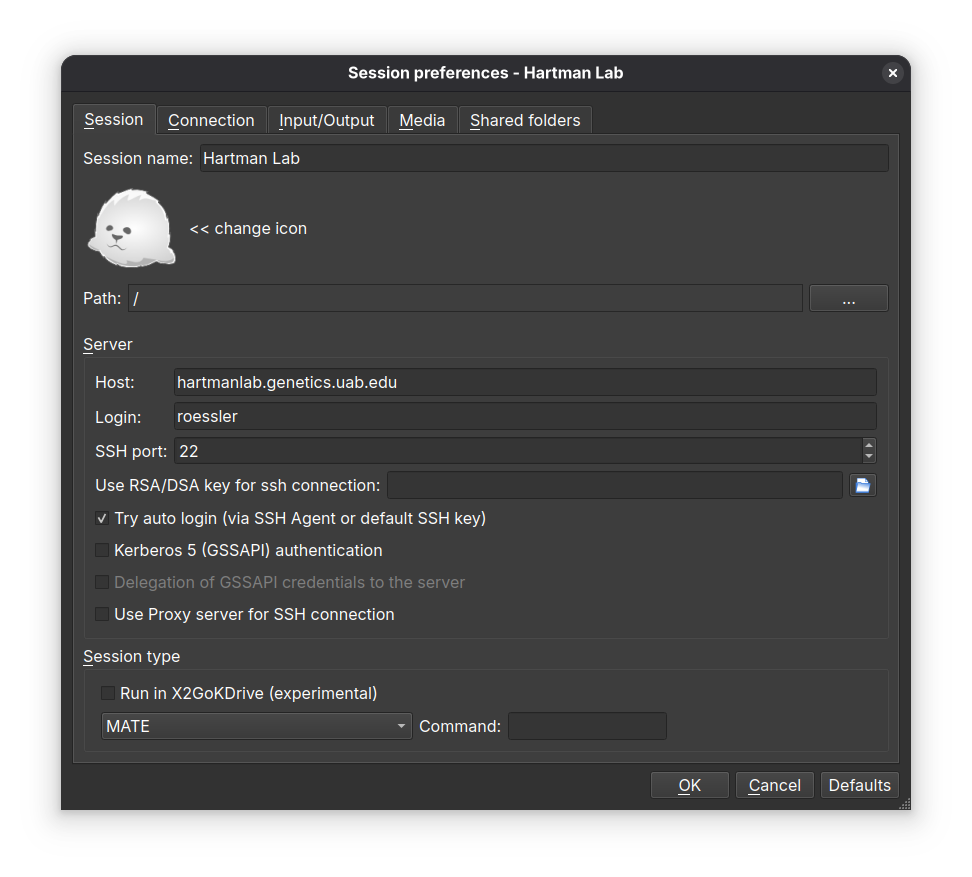
Session tab
- Session name: Hartman Lab Server
- Host:
hartmanlab.genetics.uab.edu - Login:
username - SSH port:
22 - Session type: MATE (provides the best experience with X2Go)
-
Connection tab
- Set connection speed to LAN (on-campus) or WAN (off-campus); leave compression as adaptive.
-
Input/output tab
- If automatic resizing fails (common on HiDPI), set a manual startup resolution. For scaling issues, try DPI 96.
- For keyboard mapping issues (e.g., broken arrow keys), select Configure Keyboard and keep the defaults.
-
Media tab
- Disable sound support to prevent pulseaudio log spam.
-
Shared folders tab
- Browse to a folder, add it to the share, and select automount. Shared folders appear at
/media/disk/<share_name>.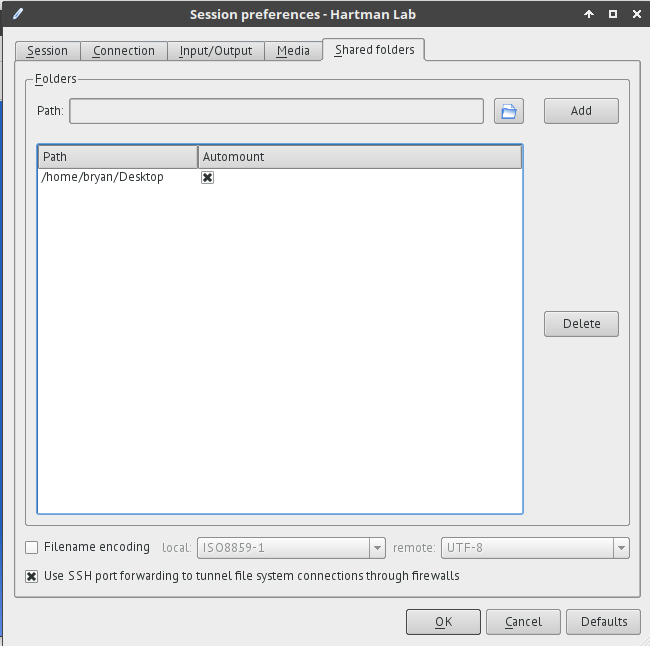
- Browse to a folder, add it to the share, and select automount. Shared folders appear at


ssh remote login
ssh X forwarding
Run graphical programs on the server with local display output.
- Linux/OSX:
ssh -X username@hartmanlab.genetics.uab.edu - Windows: Install Xming and enable X11 forwarding in PuTTY options.

sftp remote filesharing
-
File manager (Caja): enter
sftp://username@hartmanlab.genetics.uab.edu/home/usernamein the URL bar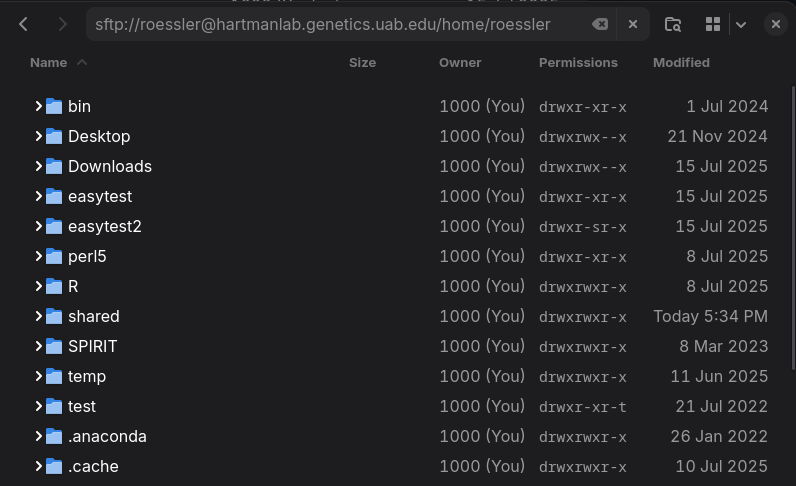
-
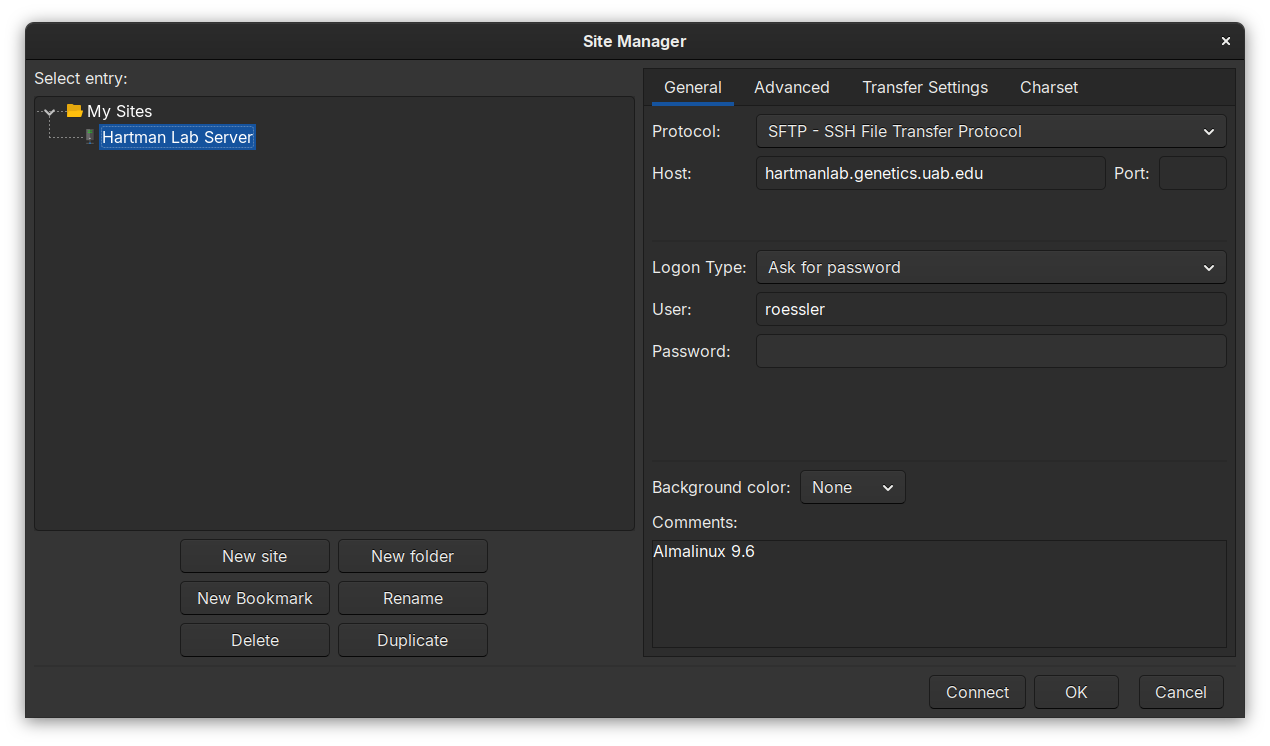
Filezilla (Linux/OSX/Windows)
-
sshfs (Linux/OSX/Windows)
-
WinSCP (Windows)


samba remote filesharing
The server provides two samba shares (credentials: server username/password):
- Shared data array (
/mnt/data):\\username\\data - User home directory (
/home/username):\\username\\username
Note: Samba shares are only available on-campus. For off-campus access, use SSH tunneling: ssh -L 1445:localhost:445 user@remote-server

Robot computer remote desktop
-
In X2Go, open Applications > Internet > Remote Viewer, enter
vnc://robot:5900in Connection Address, and click Connect.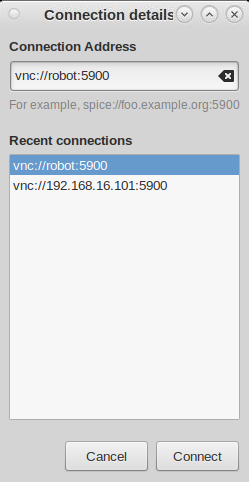

Robot computer remote filesharing
-
In X2Go, open Applications > System Tools > Caja, enter
ftp://robotin the Location bar. Open a second Caja window to drag and drop projects to/mnt/data.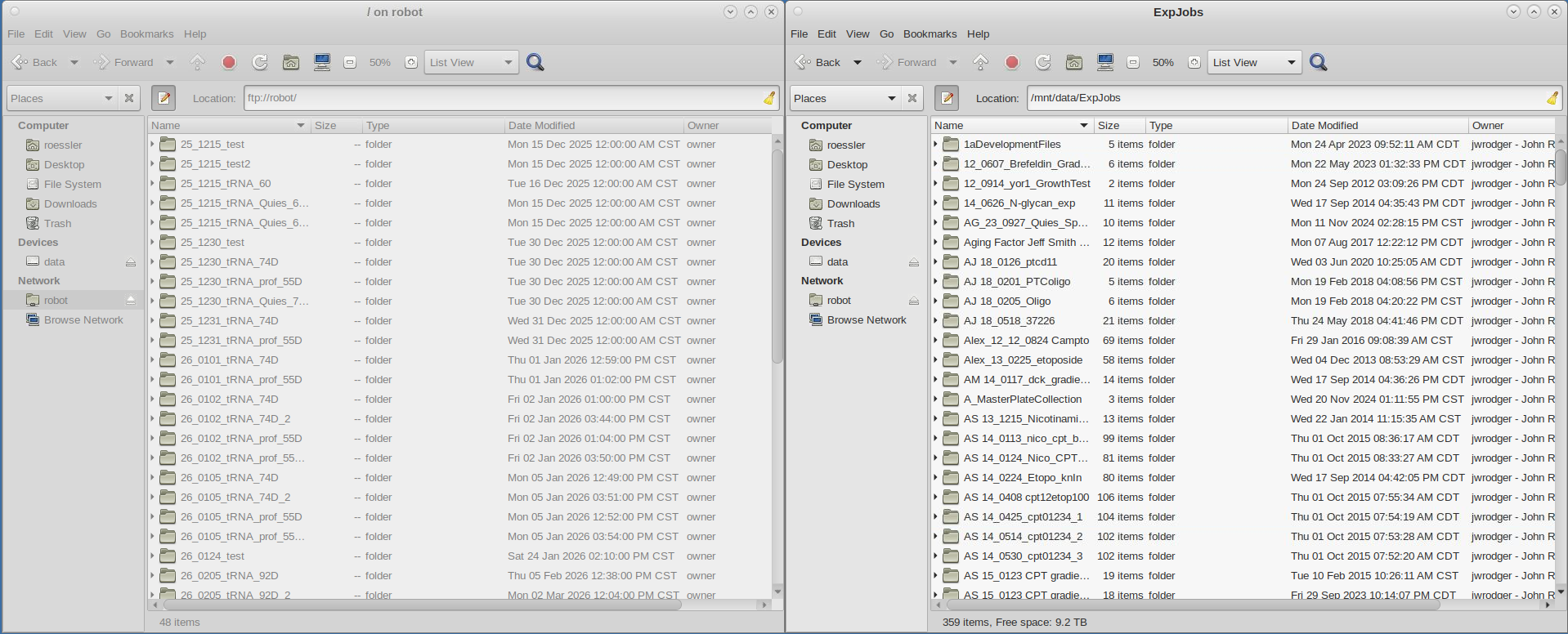

Robot webcam
- In an X2Go session, via a web browser at
http://localhost:9999 - Locally via a web browser via an SSH tunnel:
ssh -f username@hartmanlab.genetics.uab.edu -L 9999:localhost:9999 -N

RStudio Server
- In an X2Go session, via a web browser at
http://localhost:8787 - Locally via a web browser via an SSH tunnel:
ssh -f username@hartmanlab.genetics.uab.edu -L 8787:localhost:8787 -N


Other available software
- VSCode
- MATLAB
- Jupyter Notebook
qhtcp-workflowpodmanfor containerstoolboxfor custom softwaredistroboxfor custom environments- ...and much more (see
dnf list --installedfor installed packages). Open an issue for missing or out-of-date software.
Backing up data
/mnt/data is snapshotted daily to /mnt/backup/data-backup and rolling backups are retained for six months.
rsync is recommended for periodically backing up user files to a local client.
- Copy a user's
$HOMEdirectory locally to/home-backupfrom a client:rsync -azH --delete username@hartmanlab.genetics.uab.edu:/home/username/ home-backup/ - Copy a shared directory locally to the current directory from a client:
rsync -azh username@hartmanlab.genetics.uab.edu:/mnt/data/scans/20250723_roessler_project .
Backups can also be run from the server using pre-installed tools (rsnapshot, borgbackup, ...).
Troubleshooting
Read the ssh login message (cat /etc/motd) for server status and updates. Open an issue if there is one.
- Can't login via
ssh- Verify your username and that caps lock is off.
- Three consecutive failed logins from off-campus will ban the IP for one hour.
- Have an admin run:
sudo script-user-unban <ip_address> - Have an admin run:
sudo script-user-reset-password <username>
- Can't login via X2Go
- Login via
sshand reset corrupt X2Go sessions:script-user-reset-x2go
- Login via
- X2Go desktop is corrupted (desktop not similar to screenshot)
- Login via ssh and reset your desktop:
script-user-reset-desktop
- Login via ssh and reset your desktop:
- File permissions issues
- Check permissions with
ls -alor your file manager. /mnt/datauses shared group permissions, usually:- Group:
smbgrp - User: username that created/owns the file (or
smbgrp) - Permissions:
2775
- Group:
- To change:
chown -R username:smbgrp <dir> && chmod 2775 <dir> - If you lack the necessary privileges, ask an admin to fix permissions or make a copy.
- Check permissions with
- Program runs slowly in paused X2Go session
GitHub Resources
External Resources
Platform
- AlmaLinux 9.6 w/ Linux 6.1 LTS Hyperscale SIG kernel
- Intel Xeon X99 E5-2650v4 12-core CPU
- 96GB DDR4 RAM
- 4TB PCIe 3.0 NVMe SSD:
/,/home - 20TB
btrfsraid1 array:/mnt/data - 20TB
btrfsraid1 backup array:/mnt/backup
Administrators
For additional documentation see docs/README.md.